Automatic Database Backup
| Module | Cloudlink - Database |
| Technical Name | cloud_link_db |
The Cloudlink - Database module allows you to backup your database directly to any configured Cloudlink Drive (Google Drive, Dropbox, S3, etc.). Backups can be scheduled to run automatically at specified intervals, and old backups can be automatically rotated.
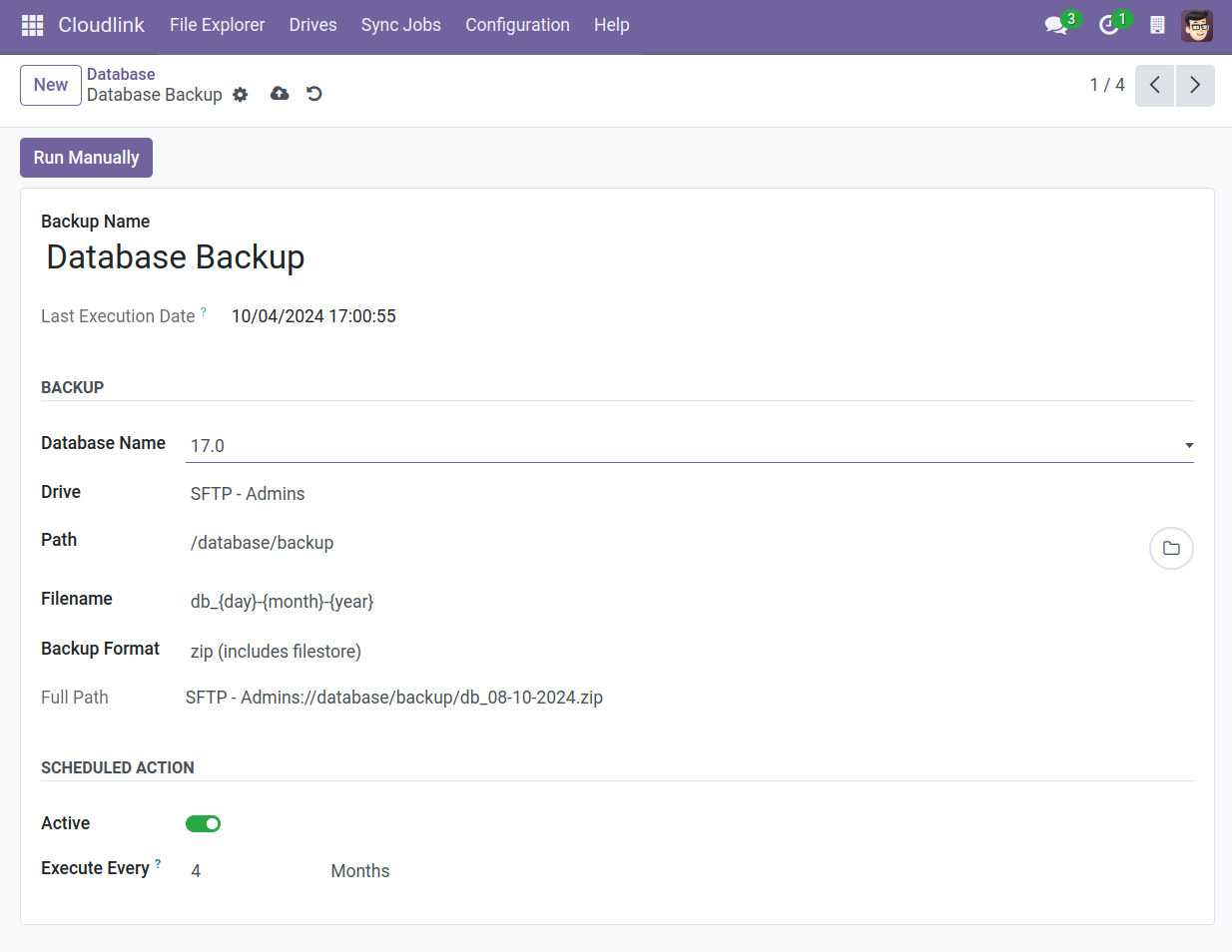
Configuration
- Navigate to Cloudlink > Configuration > Database Backups.
- Click New.
- Configure the backup settings (see below).
- Activate the job.
Backup Settings
Name
A descriptive name for the backup job.
Database Name
The exact name of the PostgreSQL database to backup.
Destination
- Destination drive: The drive where the backup will be saved.
-
Destination path: The folder path on the drive (e.g.,
/backups).
Filename
The naming pattern for the backup file. Smart placeholders are supported:
-
{db_name}: Database Name -
{year},{month},{day}: Date components -
{hour},{minute},{second}: Time components
Default: {db_name}-{day}{month}{year}
Format
- zip (includes filestore): Full backup including attachments.
- pg_dump (without filestore): SQL dump only. Faster and smaller, but excludes attachments.
Scheduling
- Active: Must be checked for automatic execution.
- Execute Every: The frequency of the backup (e.g., every 1 Day).
- Next Execution Date: When the backup will run next.
Backup Retention
Manage storage usage by automatically deleting old backups.
- Keep all: Never delete backups.
- Number of backups to keep: Specify a count (e.g., 7 to keep the last 7 backups). Oldest files are deleted when new ones are created.
Restore
To restore a backup:
- Download the backup file from the drive.
- Go to the Odoo Database Manager (
<your-domain>/web/database/manager). - Use the Restore Database feature and upload the file.
Notifications
If a backup job fails, a notification is sent to the followers of the backup record. Add yourself as a follower to receive alerts via email or Odoo Discuss.