Set up a Filestore
| Module | Cloudlink - Storage |
| Technical Name | cloud_link |
The Filestore feature allows you to store Odoo attachments (files) directly on a Cloudlink Drive (Google Drive, OneDrive, SFTP, etc.) instead of the local Odoo server. This is useful for offloading storage, centralizing files, or integrating with external storage providers.
Attachments are stored on the configured drive and path. You can restrict which Odoo models use the Filestore. When enabled, attachments for the selected models will be uploaded to the cloud drive and accessible via secure URLs.
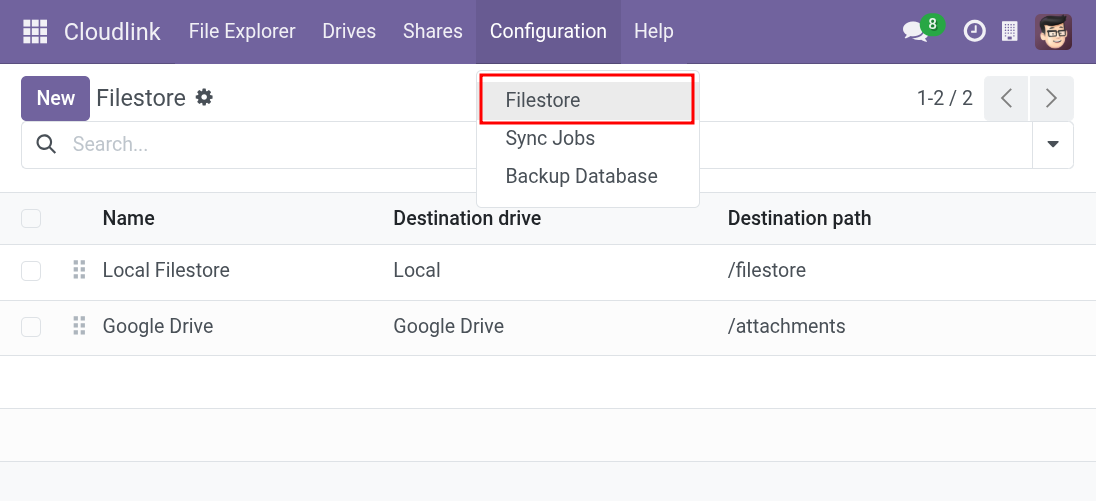
How it Works
- When a user uploads an attachment, Cloudlink searches for a matching Storage Template within your active Filestores.
- If a match is found for the record’s model, the file is uploaded to the cloud drive using the path defined in the template.
- The attachment is stored as a URL in Odoo.
- If Bidirectional Sync is enabled, files added directly to the cloud folder are automatically synced back to Odoo when the record is accessed.
Storage Templates & Folder Structure
Storage Templates define how files are organized on the drive. You can define specific templates for different Odoo models or a default template for all other models.
The Directory field in a template supports dynamic placeholders to create a structured hierarchy.
Supported Placeholders:
-
{res_model}: The technical model name (e.g.,res.partner). -
{id}: The record ID (Required). -
{FIELD_NAME}: Any field on the record (e.g.,{name},{create_date.year},{company_id.name}).
Note: The directory template must always contain the
{id}placeholder to ensure files are associated with the correct record.
Example:
With a directory template of /{res_model}/{create_date.year}/{name} ({id}), a file attached to a partner named “Azure Interior” created in 2024 would be stored at:
/res.partner/2024/Azure Interior (99)/99_contract.pdf
The filename is automatically prefixed with the attachment ID to prevent conflicts.
Bidirectional Sync
If Bidirectional Sync is enabled on a Storage Template, Cloudlink will monitor the folder associated with a record.
- When a user opens a record in Odoo, Cloudlink checks the corresponding folder on the drive.
- Any new files found in that folder are automatically imported into Odoo as attachments.
- A notification is sent to the user upon completion.
This allows for seamless workflows where files are dropped into a folder (e.g., via FTP or shared drive) and immediately appear in Odoo.
To move existing attachments to the Filestore, see the guide: Move existing attachments.
Filestore Settings
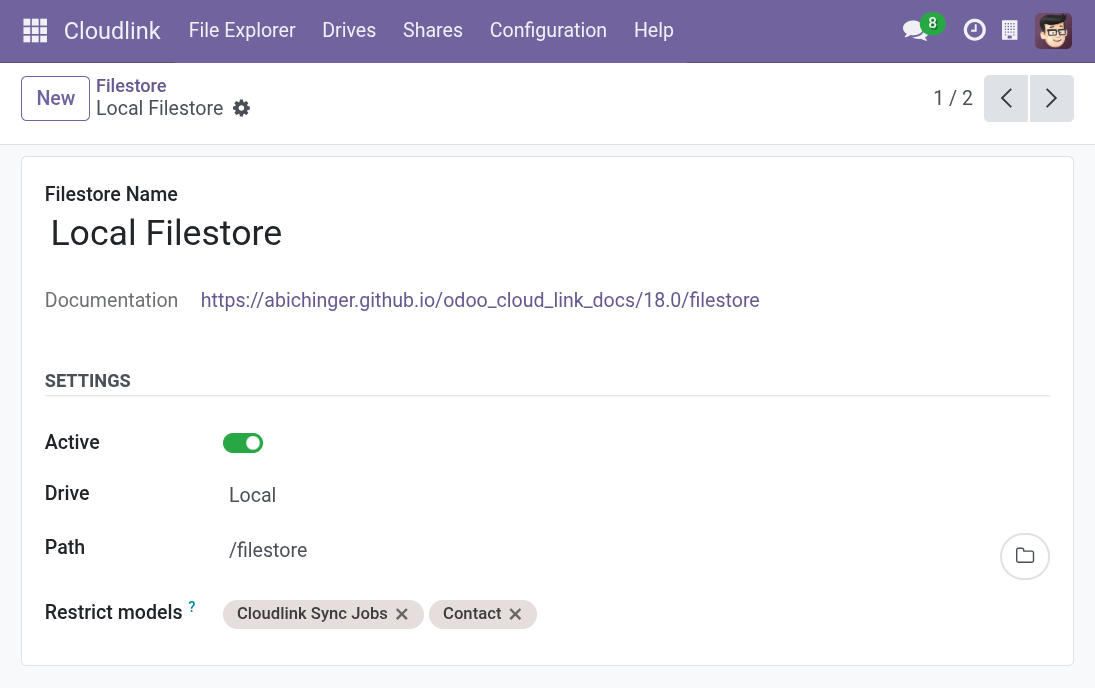
Name
The name of the Filestore configuration.
Active
Specifies whether this Filestore is active.
Drive
The Cloudlink Drive where attachments will be stored.
Path
The root folder on the drive for this Filestore (e.g., /attachments). All Storage Template paths are relative to this root.
Storage Templates
Define one or more templates to map Odoo models to directory structures.
- Model: Restrict the template to a specific model. Leave empty to apply to all other models.
- Directory: The folder path pattern (see Folder Structure).
- Bidirectional: Enable two-way sync for this model.
Sequence
Determines the order in which Filestores are matched. Lower numbers have higher priority.
Access & Security
- Attachments are accessible via secure, tokenized URLs.
- When an attachment is deleted in Odoo, the file is also removed from the cloud drive.