Move existing attachments to a Filestore
| Module | Cloudlink - Storage |
| Technical Name | cloud_link |
If you have existing attachments in Odoo (stored in the database or local filestore) and want to move them to a configured Cloudlink Filestore, you can use the Move to Cloudlink Filestore action.
Prerequisites
- You must have at least one active Filestore configured.
- The Filestore must have a Storage Template that matches the model of the attachments you want to move.
Steps to Move Attachments
- Enable Developer Mode (Settings > General Settings > Developer Tools > Activate the developer mode).
- Navigate to Settings > Technical > Database Structure > Attachments.
- Select the attachments you want to move from the list.
- You can use filters to find attachments for specific models (e.g.,
Resource Model contains res.partner).
- You can use filters to find attachments for specific models (e.g.,
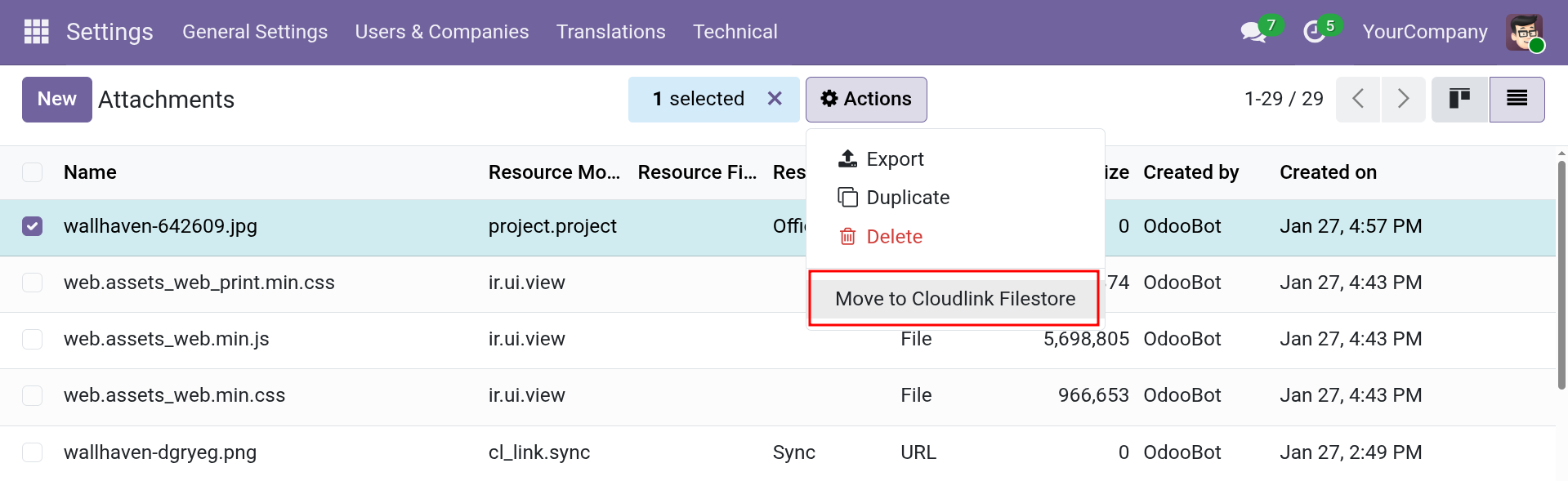
- Click the Actions button (gear icon or “Actions” menu) and select Move to Cloudlink Filestore.
How it works
The migration process runs in the background to avoid timing out when moving large numbers of files.
- Validation: The system checks if there is a matching Filestore for each selected attachment. If no match is found, an error is raised immediately.
- Scheduling: A background job (Scheduled Action) is created to process the files.
-
Processing: The job moves the file content to the cloud drive and updates the attachment record in Odoo to point to the new location (changing
typetourl).
Attachments are moved one by one. If an error occurs with a specific file, it will remain in its original location, and the error will be logged.